Database Backups
We automatically back up all Free, Pro, Team, and Enterprise Plan projects on a daily basis. You can find backups in the Database > Backups section of the Dashboard.
Pro Plan projects can access the last 7 days of daily backups. Team Plan projects can access the last 14 days of daily backups, while Enterprise Plan projects can access up to 30 days of daily backups. If you need more frequent backups, consider enabling Point-in-Time Recovery. We recommend that free tier plan projects regularly export their data using the Supabase CLI db dump command and maintain off-site backups.
When you delete a project, we permanently remove all associated data, including any backups stored in S3. This action is irreversible, so consider it carefully before proceeding.
For security purposes, daily backups do not store passwords for custom roles, and you will not find them in downloadable files. If you restore from a daily backup and use custom roles, you will need to reset their passwords after the restoration completes.
Database backups do not include objects you store via the Storage API, as the database only includes metadata about these objects. Restoring an old backup does not restore objects you deleted after that backup.
Backup and restore process#
You can access daily backups in the Database > Backups section of the Dashboard and restore a project to any of the backups.
You can restore your project to any of the backups. To generate a logical backup yourself, use the Supabase CLI db dump command.
Managing backups programmatically#
You can also manage backups programmatically using the Management API:
1# Get your access token from https://supabase.com/dashboard/account/tokens2export SUPABASE_ACCESS_TOKEN="your-access-token"3export PROJECT_REF="your-project-ref"45# List all available backups6curl -H "Authorization: Bearer $SUPABASE_ACCESS_TOKEN" \7 "https://api.supabase.com/v1/projects/$PROJECT_REF/database/backups"89# Restore from a PITR backup (replace Unix timestamp with desired restore point)10curl -X POST "https://api.supabase.com/v1/projects/$PROJECT_REF/database/backups/restore-pitr" \11 -H "Authorization: Bearer $SUPABASE_ACCESS_TOKEN" \12 -H "Content-Type: application/json" \13 -d '{14 "recovery_time_target_unix": "1735689600"15 }'Restoration process#
When selecting a backup to restore to, choose the closest available backup made before your desired restore point. You can always choose earlier backups, but consider how many days of data you might lose.
The Dashboard prompts you for confirmation before proceeding with the restoration. The project is inaccessible during this process, so plan for downtime beforehand. Downtime depends on the size of the database—the larger it is, the longer the downtime will be.
After you confirm, we trigger the process to restore the desired backup data to your project. The dashboard will display a notification once the restoration completes.
If your project uses subscriptions or replication slots, you need to drop them before the restoration and re-create them afterwards. We exempt the slot used by Realtime from this requirement and handle it automatically.
Point-in-Time recovery#
Point-in-Time Recovery (PITR) allows you to back up a project at shorter intervals, giving you the option to restore to any chosen point with up to seconds of granularity. Even with daily backups, you could still lose a day's worth of data. With PITR, you can back up to the point of disaster.
Pro, Team and Enterprise Plan projects can enable PITR as an add-on.
Projects that want to use PITR must also use at least a Small compute add-on to ensure smooth functioning.
If you enable PITR, we will no longer take Daily Backups. PITR provides finer granularity than Daily Backups, so running both is unnecessary.
Backup process#
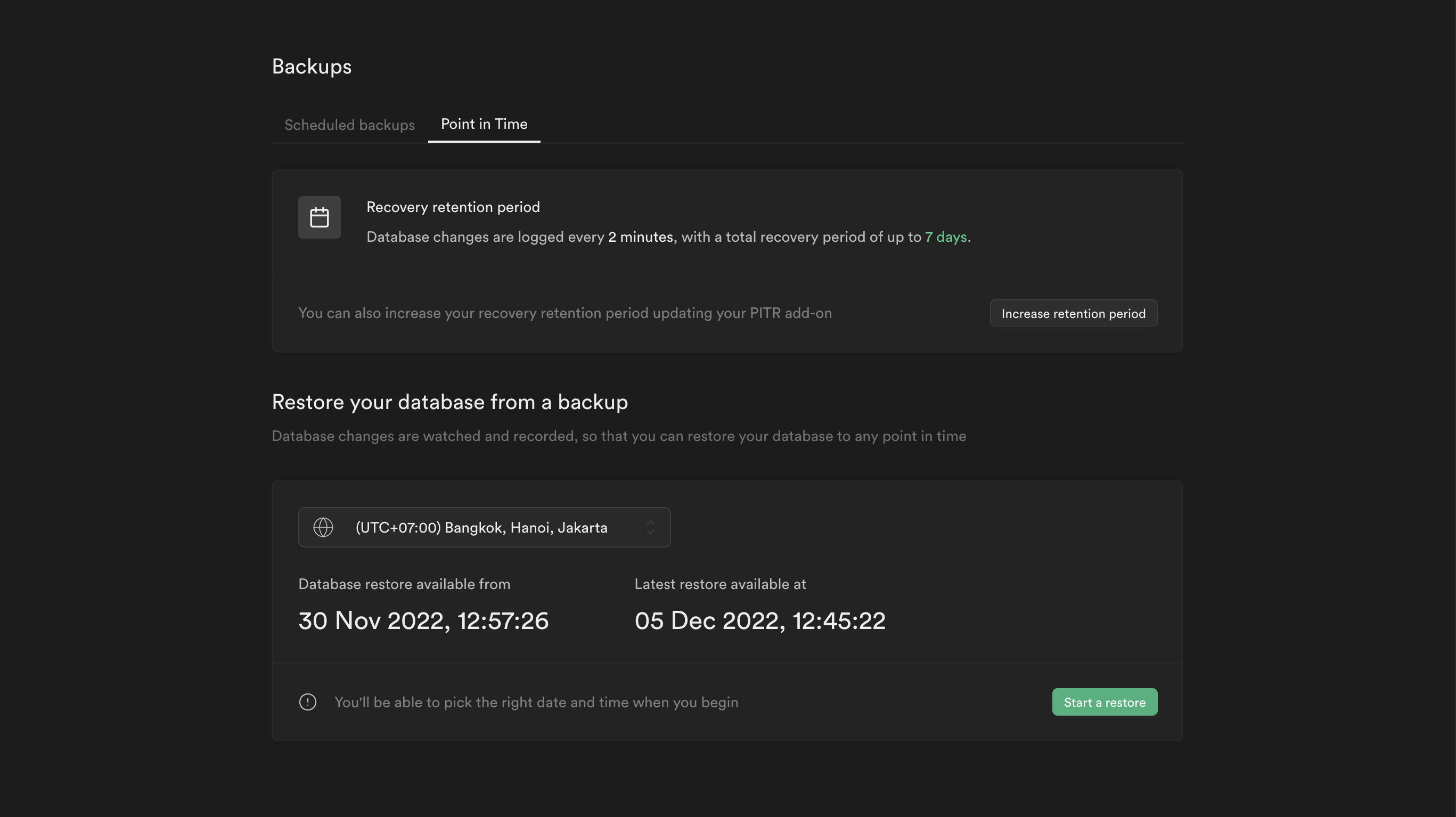
You can access PITR in the Point in Time settings in the Dashboard. The recovery period of a project is shown by the earliest and latest recovery points displayed in your preferred timezone. You can change the maximum recovery period if needed.
The latest restore point of the project could be significantly behind the current time. This occurs when the database has had no recent activity, and therefore we have not made any recent WAL file backups. However, the state of the database at the latest recovery point still reflects the current state of the database, given that no transactions have occurred in between.
Restoration process#
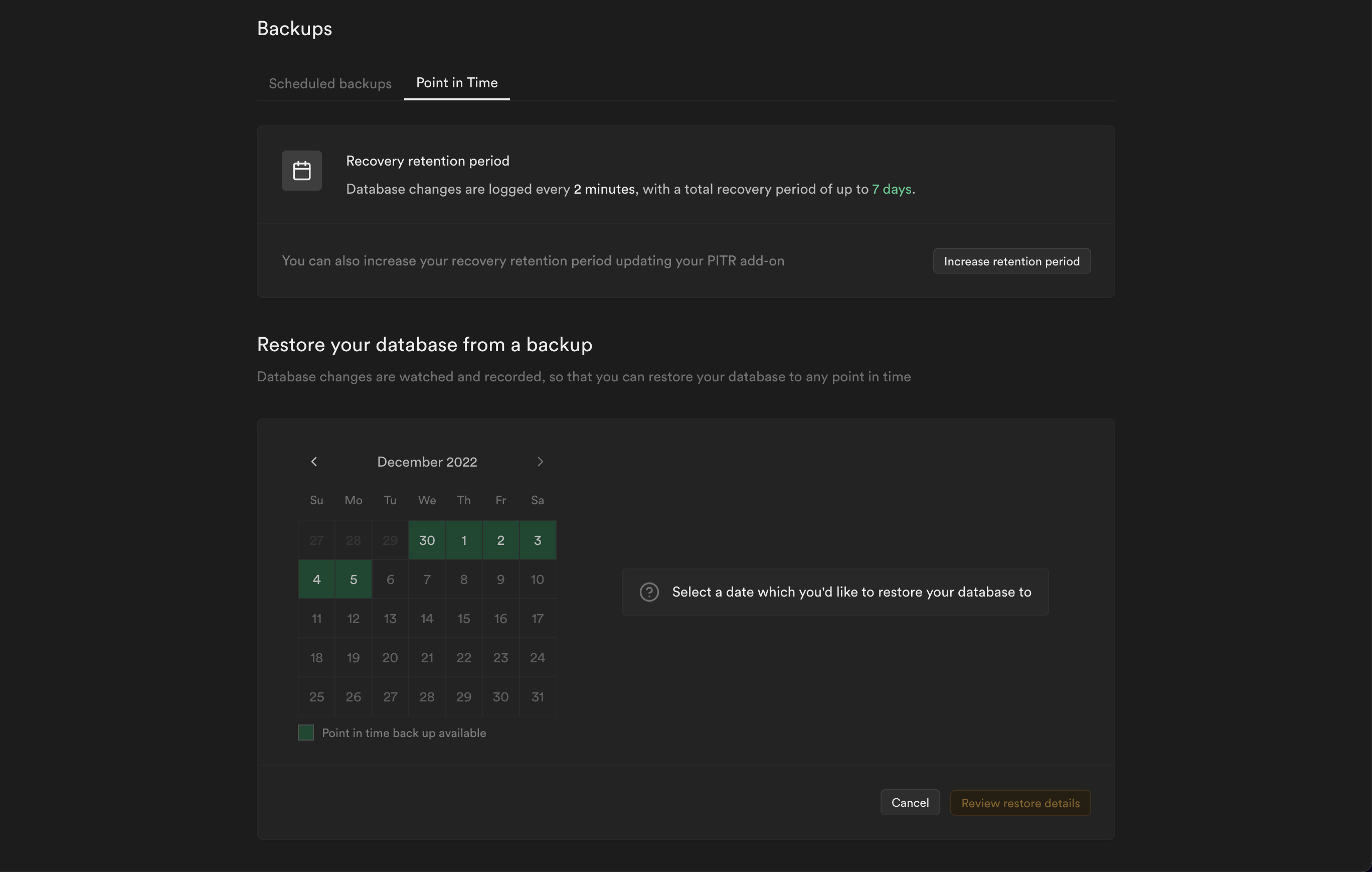
A date and time picker appears when you click the Start a restore button. The process only proceeds if the selected date and time fall within the earliest and latest recovery points.
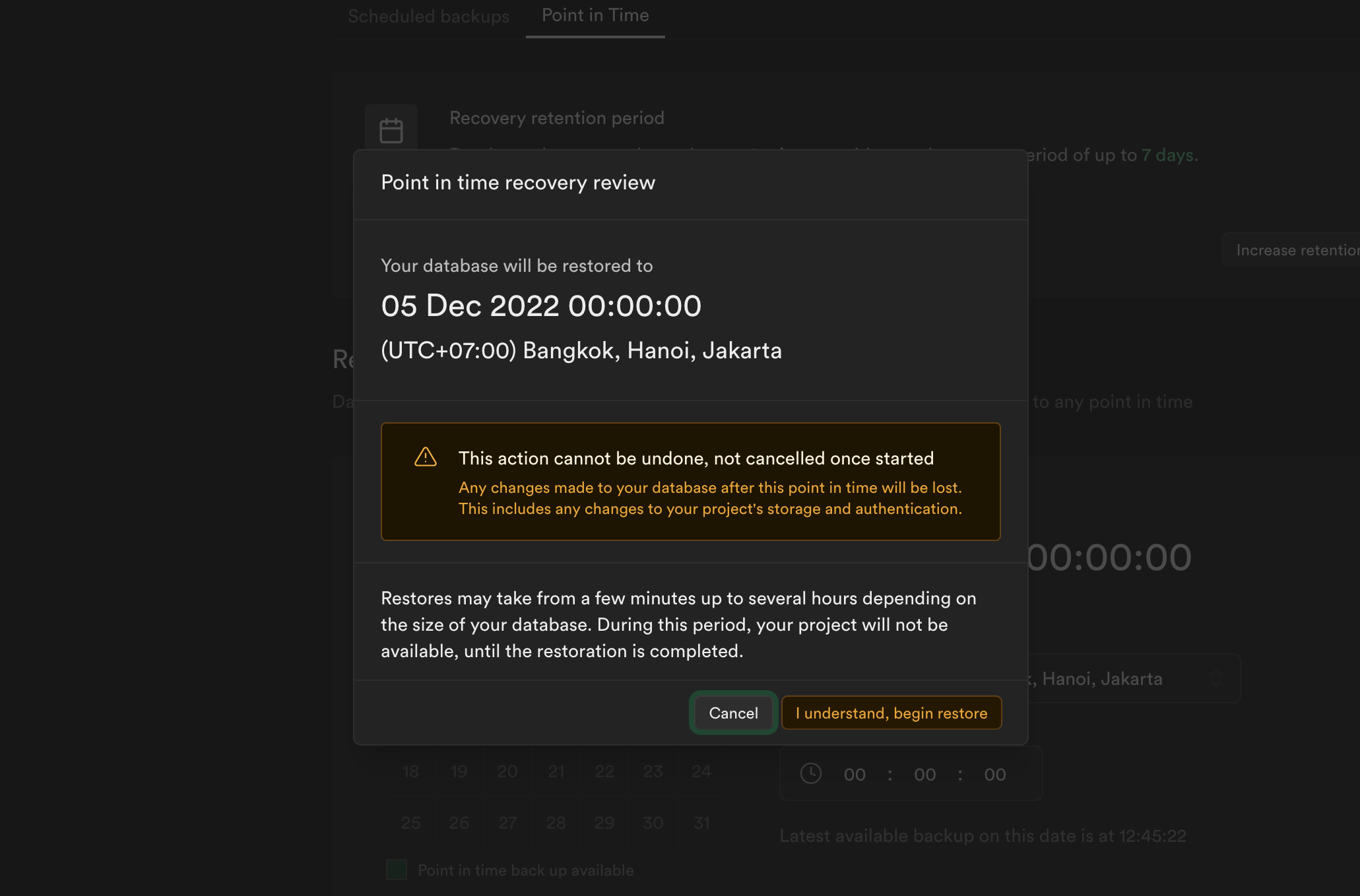
After selecting your desired recovery point, the Dashboard prompts you to review and confirm before proceeding with the restoration. The project is inaccessible during this process, so plan for downtime beforehand. Downtime depends on the size of the database—the larger it is, the longer the downtime will be. After you confirm, we download the latest available physical backup to the project and partially restore the database. We then download the WAL files generated after this physical backup up to your specified point in time. We replay the underlying transaction records in these files against the database to complete the restoration. The Dashboard will display a notification once the restoration completes.
Pricing#
Pricing depends on the recovery retention period, which determines how many days back you can restore data to any chosen point of up to seconds in granularity.
| Recovery Retention Period in Days | Hourly Price USD | Monthly Price USD |
|---|---|---|
| 7 | $0.137 | $100 |
| 14 | $0.274 | $200 |
| 28 | $0.55 | $400 |
For a detailed breakdown of how charges are calculated, refer to Manage Point-in-Time Recovery usage.
Downloading backups after disabling PITR#
When you disable PITR, we still take all new backups as physical backups only. You can still use physical backups for restoration, but they are not available for direct download. If you need to download a backup after disabling PITR, you need to take a manual legacy logical backup using the Supabase CLI or pg_dump.
Restore to a new project#
See the Duplicate Project docs.